

Quick Answer: How to Undo the Most Recent Commit
Local commit (not pushed yet):
- Keep changes staged:
git reset --soft HEAD~1 - Keep changes unstaged:
git reset --mixed HEAD~1(default) - Discard changes completely:
git reset --hard HEAD~1
Already pushed to remote:
- Recommended:
git revert HEAD - Rewrite history (only if you’re alone on the branch):
git reset+git push --force-with-lease
Always run these first to understand your current state:
git status
git log --oneline --graph -5
Understanding Git Commits
Every git commit creates a new snapshot (with a unique SHA hash). Commits are linked in a chain — each one points to its parent commit.
Undoing a commit usually means one of two things:
- Moving the branch pointer backward (
git reset→ rewrites history) - Adding a new commit that reverses the changes (
git revert→ preserves history)
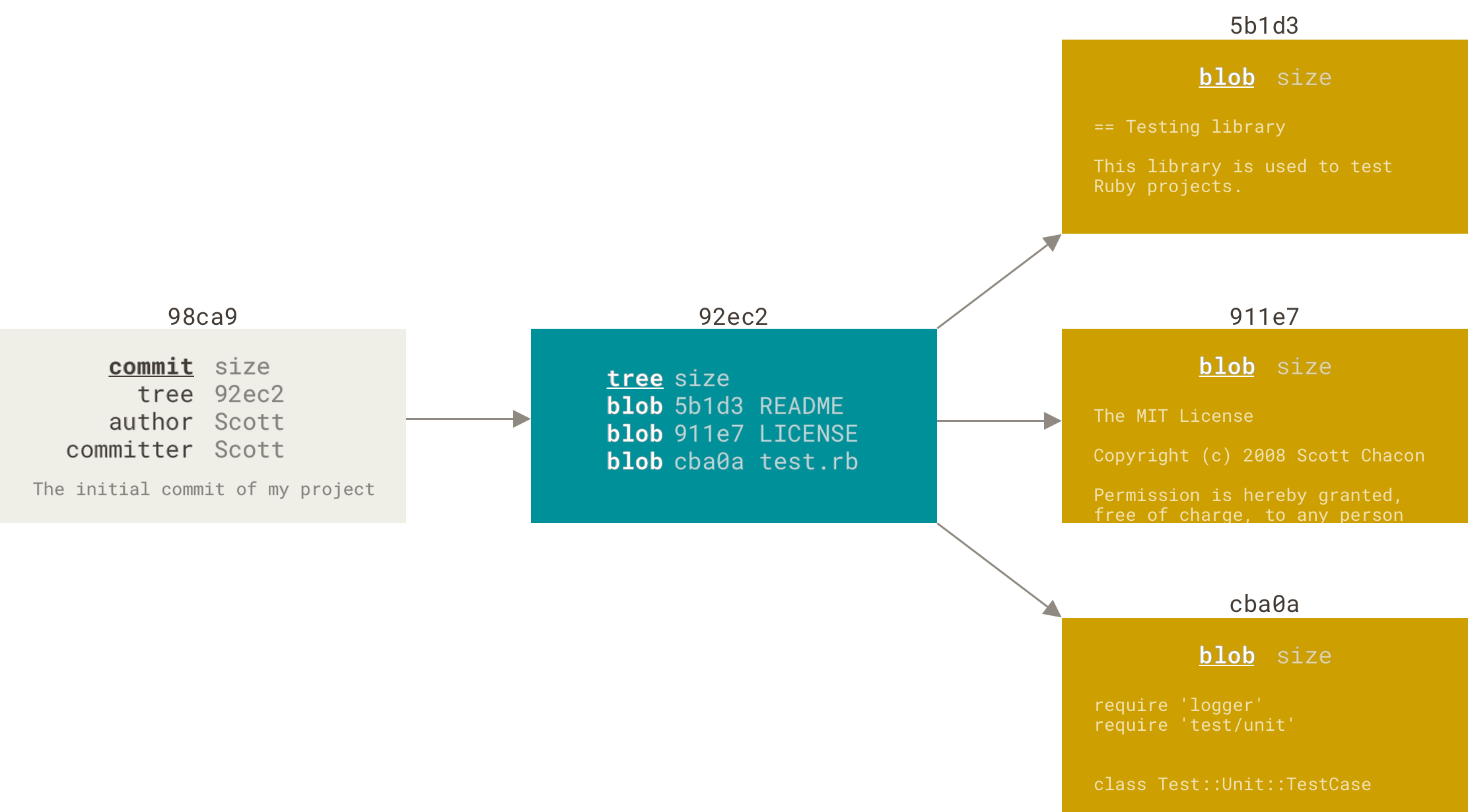
Choose your method based on whether the commit is already public / shared.
Method 1: Amend the Last Commit (git commit --amend)
Perfect when you just committed and want to:
- fix the commit message
- add forgotten files
- change a few lines
# Stage anything you forgot
git add forgotten-file.txt

# Replace the last commit
git commit --amend --no-edit     # keeps original message
# or
git commit --amend -m "Improved commit message with fixes"
Important: This rewrites the last commit → only safe before pushing.
Method 2: git reset — Rewrite Local History
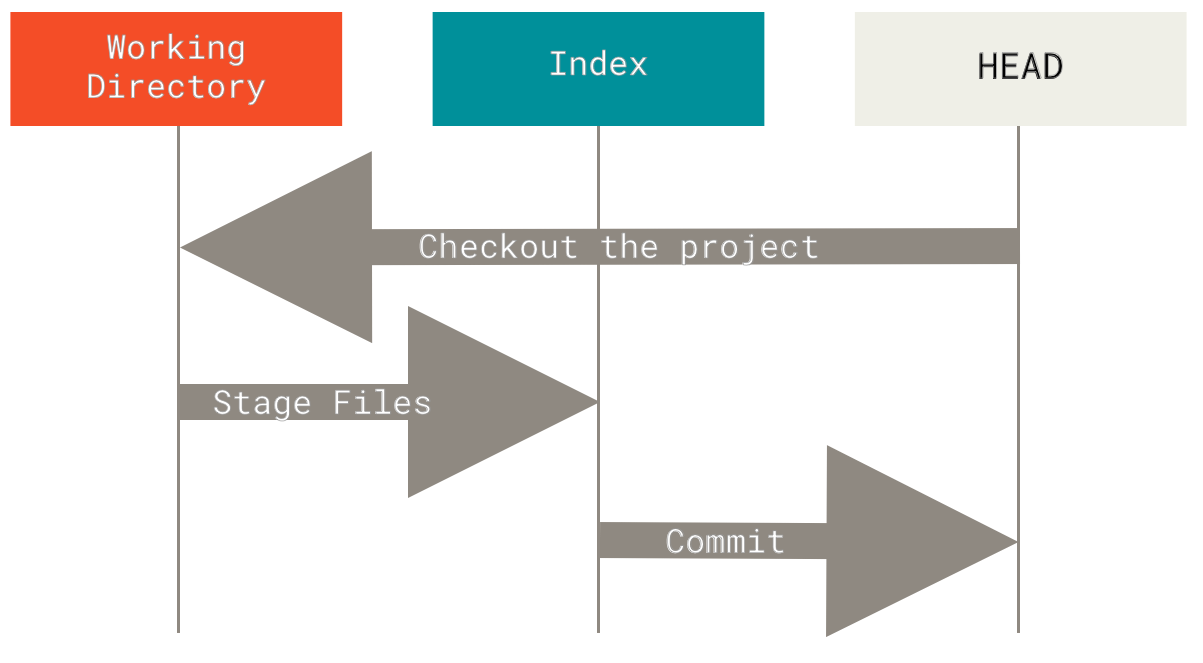
git reset moves HEAD (and your current branch) to an earlier commit.
The Three Modes Explained
| Mode | Moves HEAD | Staging area | Working directory | Best for |
|---|---|---|---|---|
--soft | Yes | unchanged | unchanged | Squash / combine commits |
--mixed | Yes | reset | unchanged | Most common local undo |
--hard | Yes | reset | reset | Discard changes completely (danger) |
Practical examples
# Keep changes staged (most useful for re-committing)
git reset --soft HEAD~1

# Put changes back in working directory (default behavior)
git reset --mixed HEAD~1
# same as:
git reset HEAD~1

# Discard everything — irreversible without reflog
git reset --hard HEAD~1

# Go back 3 commits and discard changes
git reset --hard HEAD~3
Method 3: git revert — Safe Undo for Shared / Public Repos
git revert creates a new commit that reverses the changes — history stays clean and intact.
# Revert the most recent commit
git revert HEAD

# Revert a specific commit
git revert abc1234

# Revert last 3 commits (creates 3 revert commits)
git revert HEAD~2..HEAD
This is the recommended method for main, master, develop, or any branch others are using.
Visual Guide: Reset vs Revert
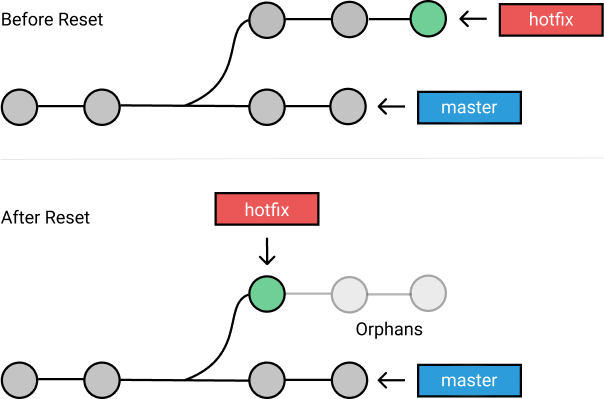
git reset→ branch pointer moves backward (history rewritten)git revert→ new commit added on top that undoes the changes (history preserved)
Undoing Pushed Commits Safely
Best practice (team-safe):
git revert HEAD
git push origin main
Only if you are 100% sure no one else uses the branch:
git reset --hard HEAD~1
git push --force-with-lease origin main
--force-with-lease is much safer than plain --force because it fails if someone else pushed in the meantime.
Recovering Lost Commits with git reflog
Even after git reset --hard, commits are not permanently deleted (usually kept for 90 days).
# Show all recent HEAD movements
git reflog
To recover:
# Restore to a previous state
git reset --hard HEAD@{3}

# Safer: create a recovery branch
git checkout -b recovery-branch HEAD@{3}
Best Practices & Common Mistakes
Do:
- Always check
git statusandgit logbefore undoing - Use
git reverton shared branches - Prefer
--force-with-leaseover--force - Commit small logical changes often
Don’t:
- Use
git reset --hardor force push on shared branches without team agreement - Run dangerous commands without checking first
- Ignore uncommitted changes before resetting
FAQ
How do I undo the last commit without losing changes?
git reset --soft HEAD~1 or git reset --mixed HEAD~1
What is the difference between git reset and git revert?
git reset rewrites history (local/private use). git revert adds a new commit (safe for shared repos).
How to undo multiple commits in Git?
Local: git reset --hard HEAD~n
Shared: git revert HEAD~n..HEAD
Can I recover a commit after git reset —hard?
Yes — use git reflog to find the hash, then git reset --hard <hash> or create a recovery branch.
How to undo a commit that was already pushed?
Best & safest: git revert <commit> then push normally.
Is there a git undo command?
No — the main tools are git reset, git revert, and git commit --amend.
Resources
- Official Git docs: git-reset
- Official Git docs: git-revert
- Official Git docs: git-reflog
- Pro Git book – Undoing Things
- Stack Overflow: Undo most recent local commits
Bookmark this page — it’s one of the most complete guides to undoing commits in Git (updated 2026).
Have a specific or complicated case? Paste your git log --oneline --graph -8 or describe the situation in the comments — happy to help personally.
Happy (and safe) committing! 🚀
Last updated: February 2026. Commands are stable across Git 2.30–2.47+. Always check git --version.