

Merge conflicts are one of the most common (and frustrating) parts of team Git workflows — but they are not dangerous and follow very predictable rules.
This guide shows you exactly how to resolve merge conflicts using the command line, visual tools, and best practices — updated for Git usage patterns in 2026.
Quick Cheat Sheet – Resolve Merge Conflict in < 60 seconds
# 1. See which files are in conflict
git status

# 2. Open the file and fix the code between markers
#    <<<<<<< HEAD  …  =======  …  >>>>>>> branch-name

# 3. Mark as resolved
git add <file>

# 4. Finish the merge
git commit

# Want to give up?
git merge --abort
# or (during rebase)
git rebase --abort
What is a Git Merge Conflict?
A merge conflict occurs when Git cannot automatically decide how to combine two sets of changes because:
- the same lines were edited differently in two branches
- one branch deleted a file while the other modified it
- both branches renamed a file differently or moved it to different locations
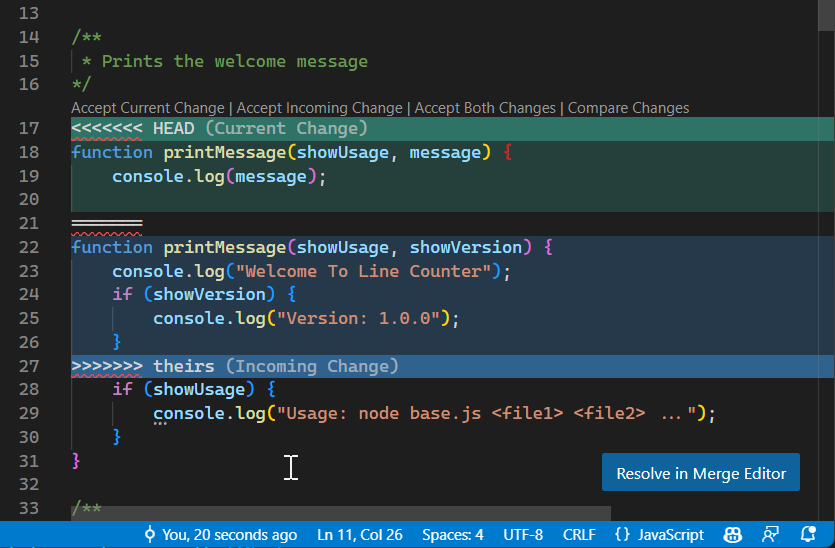
Git marks the conflicting regions with special conflict markers:
<<<<<<< HEAD
   your current branch (e.g. main) changes
=======
   incoming branch (e.g. feature/login) changes
>>>>>>> feature/login
These markers are inserted directly into the file.

Step-by-Step: Manual Resolution (Command Line)
1. Start the merge (or rebase)
# Typical merge workflow
git checkout main
git pull origin main
git merge feature-branch
or
# Typical rebase workflow
git checkout feature-branch
git rebase main
2. Identify conflicted files
git statusLook for files listed under:
Unmerged paths:
  both modified:   src/components/Button.js
  added by us:     new-file.txt
  deleted by them: old-page.md
3. Open and edit conflicted files
Use your editor (VS Code, IntelliJ, Vim, etc.) and look for:
<<<<<<< HEAD→ your current branch=======→ separator>>>>>>> branch-name→ incoming changes
Decide what to keep:
- Keep your version
- Keep incoming version
- Combine both
- Write completely new code
Always remove the markers after editing.
Example resolution:
Before
<<<<<<< HEAD
def calculate_total(items):
    return sum(items)
=======
def calculate_total(items, discount=0):
    return sum(items) * (1 - discount)
>>>>>>> feature/discount
After
def calculate_total(items, discount=0):
    return sum(items) * (1 - discount)
4. Stage the resolved files
git add src/components/Button.js
# or stage all resolved files at once
git add .
5. Finish the merge
git commit
# Git usually prepares a good default message
or (during rebase)
git rebase --continueUsing Visual Merge Tools (Much Easier for Complex Conflicts)
Configure a merge tool once (VS Code example):
git config --global merge.tool vscode
git config --global mergetool.vscode.cmd 'code --wait $MERGED'
Then run:
git mergetoolPopular free tools in 2026:
- VS Code (built-in 3-way merge editor – very popular)
- GitKraken (excellent visual conflict resolver)
- Meld (classic open-source 3-way diff/merge)
- KDiff3 (very good for complex conflicts)
- Beyond Compare (paid, but extremely powerful)
Abort or Undo When Things Go Wrong
# Cancel current merge
git merge --abort

# Cancel current rebase
git rebase --abort

# Quickly choose one side without editing
git checkout --ours <file>     # keep your version (HEAD)
git checkout --theirs <file>   # keep incoming version
git add <file>
Merge vs Rebase – When Conflicts Appear

- Merge → creates a merge commit, conflicts resolved once
- Rebase → rewrites history, may require resolving the same conflict multiple times
Best Practices to Prevent or Reduce Merge Conflicts
- Pull frequently (
git pull --rebaseon feature branches) - Keep branches short-lived
- Work on small, focused changes
- Communicate when multiple people touch the same file
- Use feature flags for large refactors
- Prefer rebase on private branches, merge on shared/main branches
- Review pull requests carefully before merging
FAQ – Most Common Merge Conflict Questions
How do I see which files are in conflict?
git status — look under “Unmerged paths”
What do <<<<<<< HEAD and >>>>>>> mean in Git?
<<<<<<< HEAD = your current branch changes
>>>>>>> branch-name = changes coming from the other branch
How do I resolve conflicts in VS Code?
Open the file → click the highlighted conflict → choose “Accept Current Change”, “Accept Incoming Change”, “Accept Both Changes” or use the full Merge Editor
Can I abort a merge or rebase?
Yes: git merge --abort or git rebase --abort
What is the best merge tool in 2026?
VS Code built-in editor, GitKraken, or Meld — all very good and free
Are merge conflicts dangerous?
No. Git never loses your changes — it forces you to decide which version to keep.
How to resolve rename or delete/modify conflicts?
Use git status to see what happened, then either git rm the deleted file or git add the modified/renamed version.
Still stuck after resolving?
Run git diff --cached to see what you staged, or git merge --abort and start over.
Useful Resources
- Atlassian Git Tutorials – Merge Conflicts
- Official Git Documentation – git-merge
- GitHub Docs – Resolving Conflicts
- VS Code – Working with Merge Conflicts
Bookmark this page — it covers almost every realistic merge conflict scenario you’ll encounter in 2026.
Got a particularly messy conflict? Paste your git status output or a snippet of the conflicted file — I’ll help you resolve it step by step.
Happy merging! 🛠️
Last updated February 2026 – tested with Git 2.43+