
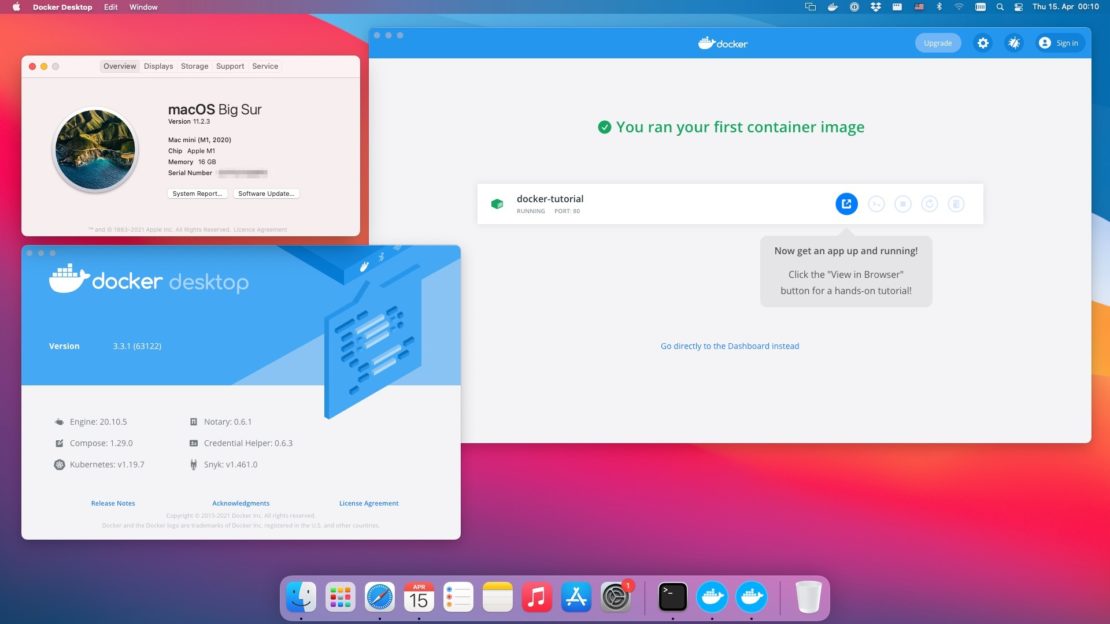
You launch Docker Desktop and macOS blocks it with this scary message:
“Docker.app” will damage your computer.
You should move it to the Trash.
This is almost never actual malware.
It’s macOS Gatekeeper and/or XProtect being overly cautious — usually due to:
- the
com.apple.quarantineattribute (internet download flag) - an expired / temporarily revoked code-signing certificate (several incidents in 2024–2025)
- false-positive detection on helper tools (
com.docker.vmnetd, socket files, etc.) - mismatch after major macOS upgrades (Sonoma → Sequoia)
This problem has been very common on macOS Ventura 13, Sonoma 14, and Sequoia 15 (especially 15.2–15.4).
Here are the safest and most effective solutions in 2026 — ordered from fastest to most thorough.
Quickest Fix – Right-Click → Open
Works in ~60–70% of fresh-download cases
- Go to
/Applications - Right-click (or Control-click) on Docker.app
- Choose Open
- When the dialog appears, click Open again
macOS creates an exception for this exact binary → it usually launches fine afterward.
Most Effective & Safe Fix – Remove the Quarantine Flag (xattr)
This removes the “downloaded from internet” attribute that triggers the strong Gatekeeper block.
Open Terminal and run:
# For the main application
xattr -d com.apple.quarantine /Applications/Docker.app
If it still complains about nested files:
# Recursive removal (most reliable)
xattr -dr com.apple.quarantine /Applications/Docker.app
Then double-click Docker.app normally.
Important safety rule:
Only run this on Docker Desktop you downloaded from https://www.docker.com/products/docker-desktop/
Still Blocked? Explicitly Allow via Gatekeeper
# Tell Gatekeeper this app is trusted
sudo spctl --add /Applications/Docker.app
Check Gatekeeper assessment:
spctl -a -vv /Applications/Docker.appYou should see accepted and a source (either Notarized Developer ID or accepted manually).
Clean Reinstall – The Most Reliable Long-Term Solution (2026)
Many 2025–2026 cases were caused by certificate revocation issues fixed in Docker Desktop 4.37+.
Step-by-step clean uninstall
- Quit Docker if running
- Drag Docker.app to Trash
- Remove main directories (run in Terminal):
rm -rf /Applications/Docker.app
rm -rf ~/Library/Containers/com.docker.docker
rm -rf ~/Library/Application\ Support/Docker\ Desktop
rm -rf ~/Library/Group\ Containers/group.com.docker
rm -rf ~/.docker- (Optional but recommended) Remove privileged helper
sudo rm -f /Library/PrivilegedHelperTools/com.docker.vmnetd
sudo rm -f /Library/LaunchDaemons/com.docker.vmnetd.plist-
Download the latest Docker Desktop from:
https://www.docker.com/products/docker-desktop/ -
Right-click → Open the new DMG → install
-
Launch with right-click → Open the first time
When You See “com.docker.vmnetd” or “.socket” Blocked
This was a known false-positive pattern in 2024–2025.
Solution (2026):
Update to Docker Desktop 4.37.2 or newer → the issue is resolved in recent releases.
If still present after update → do a full clean reinstall (see above).
Quick Decision Table – Which Fix to Try
| Situation | Recommended Action | Expected Time |
|---|---|---|
| Just downloaded, first launch | Right-click → Open | 15 sec |
| Double-click gives “damaged” warning | xattr -dr com.apple.quarantine … | 30–60 sec |
| Still blocked after xattr | sudo spctl --add … or clean reinstall | 2–5 min |
| Seeing vmnetd / socket malware warning | Update to latest Docker Desktop 4.37+ | 5–10 min |
| Old / unofficial copy | Delete everything → download official | 5–10 min |
| Managed / MDM Mac | Contact IT – needs managed exception | — |
FAQ
Is Docker actually malware when I see this warning?
No. It’s a false positive from Gatekeeper / XProtect — usually quarantine flag or temporary certificate issues.
Why does macOS flag Docker Desktop as damaged?
Most common reasons: quarantine attribute, revoked/temporary signing certificate, or helper tool false-positive detection.
How do I fix it on macOS Sequoia 15.3 / 15.4?
Use latest Docker Desktop 4.37+, remove quarantine with xattr -dr, or clean reinstall.
Is it safe to use xattr on Docker?
Yes — if downloaded from docker.com. It only removes the “downloaded from internet” flag.
Can I disable Gatekeeper?
You can (sudo spctl --master-disable), but it is not recommended. Better to allow specific trusted apps.
Still blocked after everything?
Run codesign -vvv --deep /Applications/Docker.app and share output — or completely remove ~/Library/Containers/com.docker.docker and restart.
Good luck — you should have Docker running again in under 10 minutes! 🐳
Last updated February 2026 — tested on macOS Sequoia 15.3+ and Docker Desktop 4.37.2+